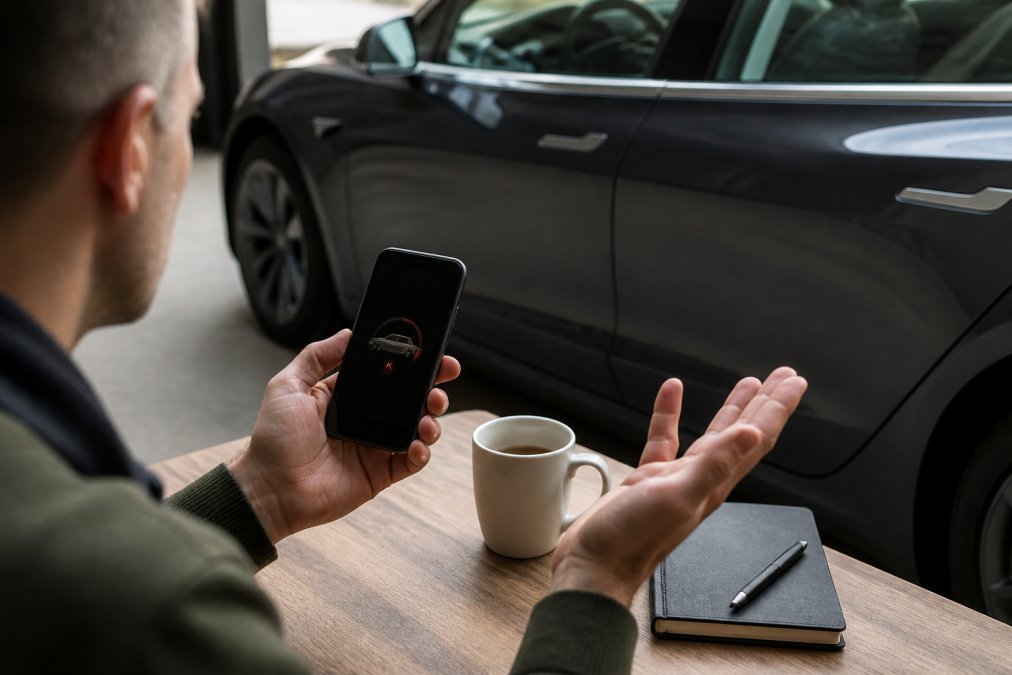
When your Tesla app fails to connect to your vehicle, it's rarely a hardware fault. More often, it's a communication breakdown between your phone and the car's systems, something that can usually be resolved without a trip to the dealership. At KMC Electric in Kettering, we've diagnosed many connectivity issues, and the pattern is often the same: most problems stem from network settings, outdated software, or Bluetooth conflicts rather than anything requiring expensive repairs.
The frustration is real. You're standing next to your car, trying to unlock it through the app, and nothing happens. Or the app connects sporadically, dropping out after a few minutes. These aren't signs your vehicle is failing, they're signals that the connection pathway between your phone and Tesla needs resetting.
Understanding why the Tesla app not connecting happens is the first step to fixing it yourself. We'll walk through the most common causes and the practical steps that resolve them.
Check Your Internet Connection and Car Settings
The Tesla app relies on a stable internet connection to communicate with your vehicle. Without it, the app can't reach your car, even if the car is sitting in your driveway. Start here before troubleshooting anything else.
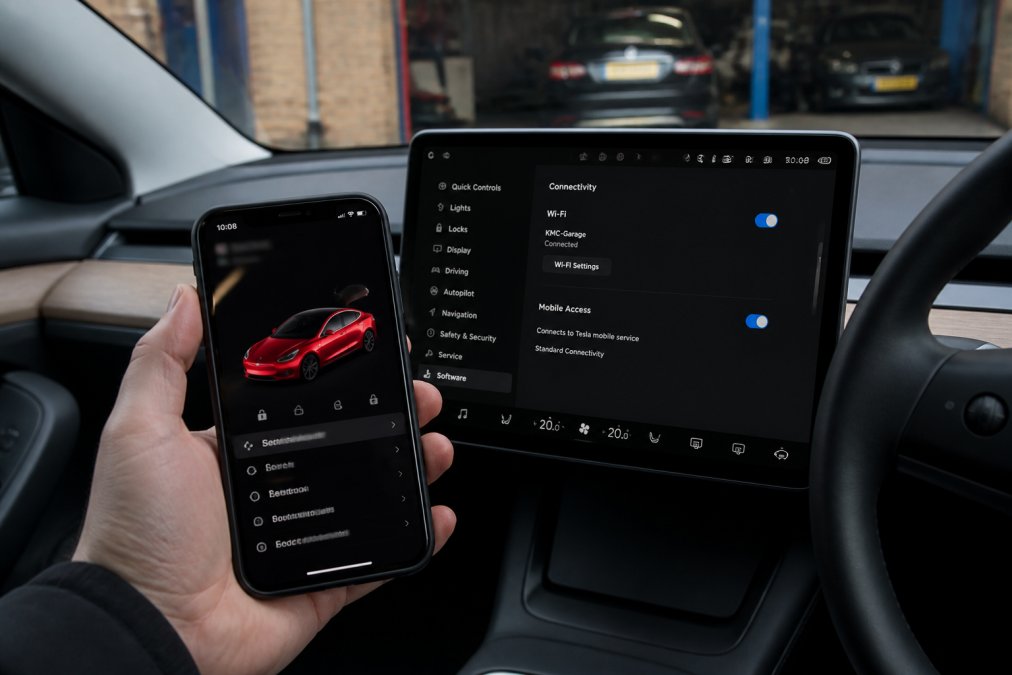
First, verify your phone has an active mobile data or Wi-Fi connection. Open your phone's settings and check that either cellular data is enabled or you're connected to a strong Wi-Fi network. Many owners assume they're connected when they're actually on a weak signal that can't handle the app's data demands.
Next, check your car's connectivity. Tesla vehicles use either a built-in modem or your phone's hotspot to access Tesla's servers. Open the vehicle's touchscreen and navigate to Controls > Service > Self-Test. This will show you whether the car has an active connection. If it shows "No Connection," the issue is on the vehicle side, not your phone.
If your car shows no connection, restart it. Press and hold both scroll wheels on the steering wheel for 10 seconds until the Tesla logo appears on the screen. Wait for the system to fully boot, this typically takes two to three minutes (tesla.com). During this time, the car will attempt to re-establish its connection to Tesla's network.
Some Tesla owners in Kettering and surrounding areas have found that their vehicles lose connectivity after extended periods without use. If your car has been parked for more than a week, it may take several minutes to reconnect to the network. Give it time before assuming there's a fault.
Check whether your Tesla account has any active alerts or service notifications. Log into your Tesla account on a web browser and look at your vehicle's status page. If there are pending software updates or system alerts, these can prevent the app from connecting properly. Address any notifications before attempting to reconnect via the app.
Professional illustration showing Tesla app not connecting
Reset Tesla Bluetooth Connection to Restore App Access
The reset Tesla Bluetooth connection process is one of the most effective fixes for app connectivity problems. Bluetooth is how your phone communicates with the car's systems, and a stale or corrupted pairing can prevent the app from functioning.
Start by removing your phone from the car's paired devices list. On your Tesla's touchscreen, go to Controls > Service > Power Off. This isn't a simple restart, it fully powers down the vehicle's systems. Wait for at least five minutes. This allows the car's Bluetooth module to clear its memory and reset its pairing cache.
While the car is powered down, go to your phone's Bluetooth settings and forget the Tesla connection. On iOS, go to Settings > Bluetooth, find your Tesla, and tap the info icon, then "Forget This Device." On Android, go to Settings > Connected Devices > Bluetooth, find your Tesla, and select "Forget." This removes the old pairing entirely.
Power the car back on by pressing the brake pedal or touching the touchscreen. Wait for the main menu to fully load. Now, re-pair your phone with the vehicle. Go to Controls > Service > Power On first to ensure the car is fully awake. Then on your phone, go to Bluetooth settings and search for your Tesla's name. When it appears, select it and complete the pairing process.
This reset typically resolves issues where the app connects intermittently or drops out after a few minutes. The old pairing had become corrupted, and a fresh pairing restores stable communication.
If you're still experiencing problems after resetting the Bluetooth connection, the issue may lie with your phone's Bluetooth hardware or your Tesla's cellular modem. At this point, a professional diagnostic becomes necessary to determine whether it's a software issue or a hardware fault.
Tesla Phone Key Not Working: Troubleshooting Steps
The Tesla phone key not working is often linked to the same connectivity issues that prevent the app from connecting. Your phone key uses the same communication pathway as the app, so if one fails, the other usually follows.
First, ensure your phone's Bluetooth is turned on and your Tesla is within range, typically 10 to 15 metres (tesla.com). Walk closer to the vehicle if you're at the edge of the Bluetooth range. Some owners find their phone key works fine in the driveway but fails when they're across the car park. Distance is often the culprit.
Check that you've set up your phone key correctly in the Tesla app. Go to Controls > Phone Key on your vehicle's touchscreen. Your phone should appear in the list of paired devices. If it doesn't, your phone hasn't been properly registered as a key. Go back to the Tesla app on your phone, tap the car icon, and select "Add Phone Key." Follow the on-screen prompts to complete the setup.
If your phone key worked before but has stopped, try the Bluetooth reset procedure outlined in the previous section. A corrupted pairing is the most common reason a previously working phone key suddenly fails.
Some phone models have stricter Bluetooth restrictions than others. On Android, check that you've granted the Tesla app permission to access Bluetooth. Go to Settings > Apps > Tesla > Permissions and ensure Bluetooth is enabled. On iOS, go to Settings > Privacy > Bluetooth and verify that Tesla is listed and enabled.
Battery level can also affect phone key functionality. If your phone's battery is below 10 percent, some devices disable Bluetooth to conserve power. Charge your phone to at least 20 percent before testing the phone key again.
If you've completed these steps and your phone key still isn't working, the issue may be with your vehicle's Bluetooth module rather than your phone. A professional diagnostic can determine whether the car's hardware needs attention.
Tesla Model S Connectivity Troubleshooting Guide
The Tesla Model S connectivity troubleshooting process follows the same principles as other Tesla models, but the Model S has some model-specific considerations worth knowing.
Older Model S vehicles (2015-2017) use a different modem architecture than newer models (tesla.com). If you own an earlier Model S, check whether your vehicle has received the latest firmware update. Go to Controls > Service > Self-Test and note the software version. Compare this to the current version on Tesla's website. If you're several updates behind, your connectivity issues may be resolved by updating the software.
Updating your Model S requires either a Wi-Fi connection or a strong mobile signal. If your car is currently unable to connect, you may need to move it to a location with better network coverage or connect it to a Wi-Fi network manually. Some owners have found that parked near a strong public Wi-Fi network (such as a shopping centre) allows the update to download successfully.
The Model S air suspension system can sometimes interfere with Bluetooth connectivity if there's a fault in the suspension module. If you've reset the Bluetooth connection multiple times without success, and your Model S has air suspension, check the suspension status on the touchscreen. Go to Controls > Service > Self-Test and look for any suspension warnings. If warnings are present, this could be contributing to broader connectivity issues.
Owners in Kettering and Northamptonshire who have older Model S vehicles should also check the 12-volt battery. A weak 12V battery can prevent the car's systems from maintaining a stable Bluetooth connection. If the touchscreen is flickering or restarting unexpectedly, the 12V battery is likely the culprit. This is a straightforward replacement that KMC Electric can handle quickly.
For Model S owners still under warranty, many connectivity issues can be resolved at a Tesla service centre at no cost. However, if your warranty has expired, the diagnostic and repair costs can be substantial. An independent specialist can often identify and fix the problem more cost-effectively.
Update Your Tesla App and Vehicle Software
Outdated software is one of the most overlooked causes of app connectivity failures. Both your Tesla app and your vehicle's firmware need to be current for reliable communication.
Start with your phone's Tesla app. On iOS, open the App Store and check whether an update is available. On Android, open Google Play Store and do the same. If an update is pending, install it immediately. App updates often include bug fixes that resolve connectivity issues.
Next, check your vehicle's software version. On the touchscreen, go to Controls > Service > Self-Test. Note the software version displayed. Compare this to the current version listed on Tesla's website or in the Tesla app under your vehicle's status page.
If an update is available, your car will typically notify you on the touchscreen. You can initiate the update manually by going to Controls > Service > Check for Updates. The car must be plugged in to a power source to begin a software update. If you're not currently charging, plug in your vehicle and wait for the update prompt to appear.
Software updates can take 30 minutes to several hours, depending on the size of the update and your internet connection speed. Do not drive the vehicle or shut it down during an update. Park it somewhere safe and let the update complete uninterrupted.
After both your app and vehicle software have been updated, restart your phone and restart your car (using the scroll wheel reset method). This ensures all systems recognise the new software versions and re-establish communication cleanly.
If you've updated everything and the app still won't connect, the problem is likely not software-related. At this point, it's worth having a professional diagnostic performed to rule out hardware issues.
When to Seek Professional Diagnosis
If you've worked through all the troubleshooting steps above and your Tesla app not connecting issue persists, it's time to involve a specialist. Some problems require diagnostic tools that only a trained technician can access.
Hardware faults in the vehicle's modem or Bluetooth module will not be resolved by software resets. These require professional diagnosis to confirm and repair. Similarly, if your car's touchscreen is unresponsive or restarting unexpectedly, the underlying issue may be more complex than a simple connection problem.
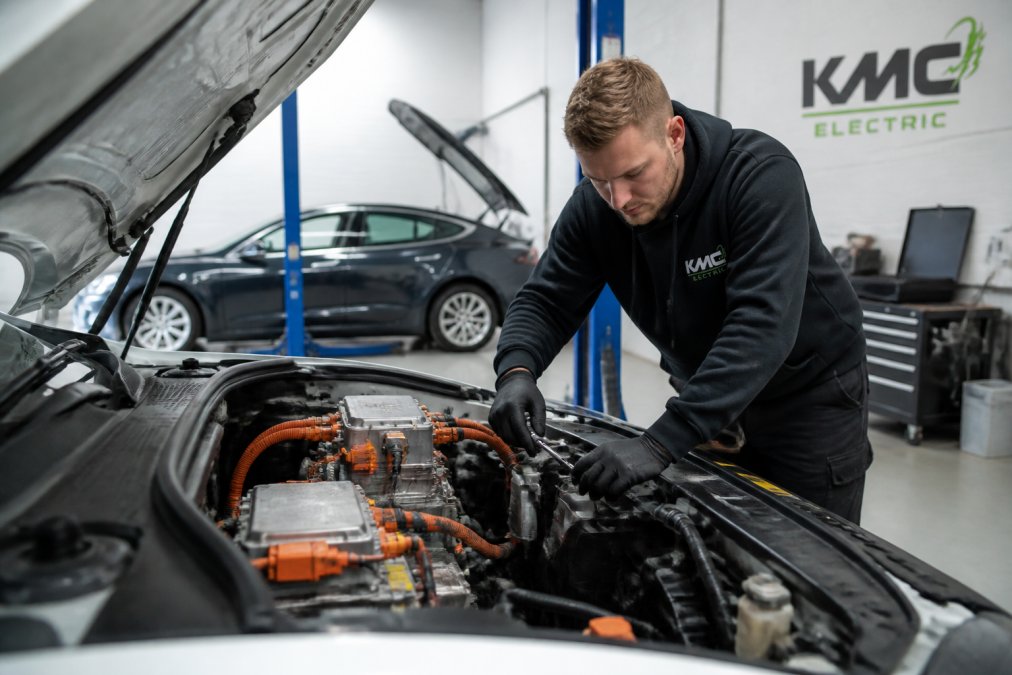
At KMC Electric in Kettering, we use specialist diagnostic equipment to read your vehicle's fault codes and pinpoint exactly where the communication is breaking down. This is far more efficient than trial-and-error troubleshooting, and it prevents you from paying for unnecessary repairs.
We can also check your vehicle's 12-volt battery, which powers the Bluetooth module and modem. A weak 12V battery won't show an obvious warning light but can cause intermittent connectivity problems that feel like software bugs. A simple voltage test reveals whether this is the issue.
For owners with vehicles approaching the end of their manufacturer warranty, a professional diagnostic is particularly valuable. If a fault is identified while the vehicle is still under warranty, Tesla will repair it at no cost. If the same fault is discovered after the warranty expires, the repair bill can be substantial. Getting a professional assessment before your warranty ends protects you from unexpected costs.
Independent specialists like KMC Electric can often diagnose and resolve connectivity issues more quickly and affordably than main dealer networks. We focus on practical, real-world solutions rather than blanket replacements of expensive components.
Pro TipIf your app connectivity problem started immediately after a software update, don't wait, contact a specialist. Some updates have been known to introduce temporary connectivity issues that require a technician's intervention to resolve fully.
Conclusion
Most Tesla app not connecting problems are resolved through software resets, Bluetooth re-pairing, and ensuring both your app and vehicle firmware are current. The troubleshooting process is straightforward enough for most owners to handle independently, and it costs nothing but time.
However, if you've completed every step outlined above and the problem persists, you're dealing with a hardware issue that requires professional diagnosis. At KMC Electric in Kettering, we specialise in Tesla diagnostics and repairs for owners seeking alternatives to main dealer networks. Our Level 4 Master Technician status and over 25 years of automotive experience mean we can identify the real problem quickly, without unnecessary guesswork or expensive component replacements.
Whether your issue is a faulty modem, a failing Bluetooth module, or something more subtle, we can help. Get in touch to arrange a diagnostic appointment and discover what's actually causing your connectivity problem, and what it will take to fix it properly.
Frequently Asked Questions
Why is my Tesla app not connecting to my car?
Your Tesla app fails to connect when your vehicle loses internet access, Bluetooth pairing drops, or your account credentials expire. Common causes include weak WiFi signal at home, mobile data disabled on your phone, outdated app versions, or vehicle software bugs. Start by checking both your phone's internet connection and your car's connectivity status in the control menu. If your vehicle shows no signal bars, move it closer to your WiFi router or restart the car's systems.
How do I reset the Tesla Bluetooth connection?
Open your car's touchscreen, go to Controls > Safety > Power Off, and leave the vehicle in this state for 2-3 minutes. This performs a full system restart. Restart your phone's Bluetooth, then open the Tesla app. Your phone should re-pair automatically. If it doesn't, forget the Tesla connection in your phone's Bluetooth settings and reconnect fresh. This clears corrupted pairing data that often blocks app connectivity.
What should I do if my Tesla phone key stops working?
First, ensure Bluetooth is enabled on both your phone and vehicle. Go to your Tesla app, tap the car icon, and select 'Unlock' to test basic connectivity. If the phone key fails, restart your phone completely, then restart your car using Controls > Safety > Power Off. Update your Tesla app to the latest version from your app store. If the issue persists after these steps, your vehicle may need a software update or a hardware diagnostic to identify deeper connectivity faults.
Can KMC Electric help diagnose Tesla connectivity problems?
Yes. If standard troubleshooting doesn't restore your Tesla app connection, KMC Electric can perform a full diagnostic to identify whether the issue stems from your vehicle's modem, Bluetooth module, or software corruption. Our Level 4 Master Technicians have over 25 years of automotive experience and specialise in Tesla systems across all models. We provide transparent, cost-effective diagnostics as an alternative to main dealer repairs, helping you avoid unnecessary expenses and get your vehicle back online quickly.