The Tesla mobile app sync is one of the most frustrating issues Tesla owners face. Your app won't connect to your car, or it connects but the data won't refresh.
The good news: most sync problems are fixable without a trip to a service centre. They usually come down to connectivity, app settings, or a simple restart.
This guide walks you through the most common causes and how to fix them yourself. We'll cover what to check first, step-by-step troubleshooting, and when to seek professional help.
What You'll Need Before You Start Troubleshooting
Before diving into fixes, gather these essentials. You'll need your smartphone with the Tesla app installed, your Tesla vehicle, and access to your home WiFi network.
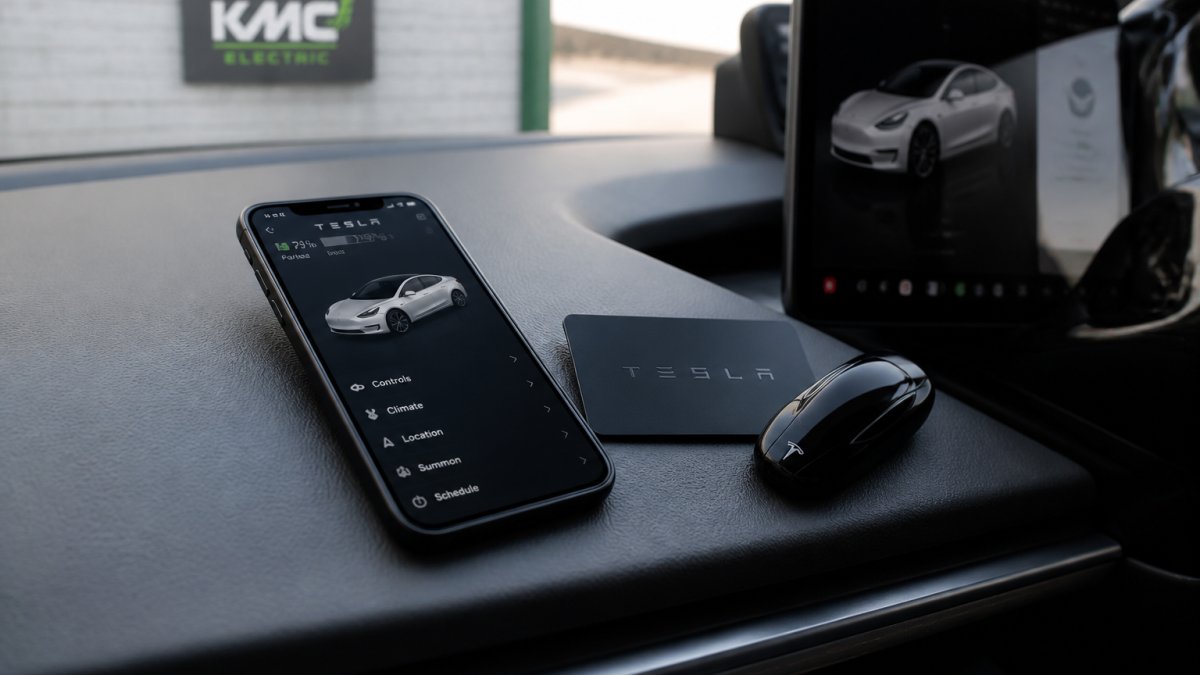
Smartphone showing a mobile application on a vehicle dashboard next to a key card and a remote entry fob
Check that your phone has Bluetooth enabled and your vehicle is within range. Most Tesla sync issues occur when these basics aren't in place. Your phone should have location services turned on as well.
Write down any error messages you see in the app. These details help when troubleshooting. Also note whether the problem started after a software update or happened suddenly.
Fix Tesla App Not Connecting to Car
When your Tesla mobile app won't connect to your vehicle, the issue usually sits in one of three places: your internet connection, Bluetooth, or the vehicle's touchscreen.
Check your WiFi and mobile data connection
Your phone needs a strong internet connection for the app to reach your Tesla. Open your phone's settings and verify you're connected to WiFi or have mobile data active.
Test your connection by opening a web browser and visiting a website. If the page loads slowly or won't load at all, your connection is the problem.
Move closer to your WiFi router if you're using wireless
Toggle mobile data off and on to refresh your connection
Try switching between WiFi and mobile data to see which works better
Restart your phone's airplane mode (turn it on for 10 seconds, then off)
If your connection is strong but the app still won't sync, move to the next step.
Pro TipMany Tesla owners forget that the app needs to communicate with Tesla's servers before reaching your car. A fast local WiFi connection isn't enough, you need actual internet access. If your home WiFi is offline, the app won't work even if your phone shows a connection.
Verify Bluetooth is enabled on your phone
The Tesla mobile app uses Bluetooth to communicate with your vehicle once it establishes an internet connection. Without Bluetooth, the app can't send commands to your car.
Open your phone's settings and check that Bluetooth is switched on. Look for your Tesla in the list of paired devices. If it's not there, you may need to re-pair your phone with the vehicle.
Go to Settings → Bluetooth on your phone
Make sure Bluetooth is toggled ON
Look for your Tesla model (e.g., "Model 3", "Model S") in the paired devices list
If missing, tap "Pair new device" and select your Tesla
If your phone is already paired but the app still won't connect, the problem may be with the vehicle itself.
Restart the Tesla touchscreen
The touchscreen in your Tesla acts as the communication hub for the app. If it's frozen or unresponsive, the app can't reach your vehicle. A restart often fixes this.
Hold both scroll wheels on your steering wheel until the Tesla logo appears on the touchscreen. This takes about 10 seconds. The screen will go black, then restart.
Wait for the touchscreen to fully boot up. This can take 1-2 minutes. Once you see the main menu, try opening the app again.
Watch OutDo NOT restart the touchscreen while driving. Pull over safely first. The restart process disables some vehicle functions temporarily, so only do this when parked.
Resolve Tesla Phone Key Not Working
The phone key feature lets you unlock your Tesla using your smartphone instead of a physical key. When it stops working, you're locked out of the unlock and lock functions in the app.
Check phone permissions and NFC settings
Your phone must grant the Tesla app permission to use NFC (near-field communication) for the phone key to work. Many owners don't realise they've accidentally denied these permissions.
On iPhone, go to Settings → Privacy → NFC and verify the Tesla app has permission.
Also check that NFC is enabled on your phone itself. Look in your phone's Quick Settings or main Settings menu. The NFC toggle should be ON.
iPhone: Settings → Privacy → NFC (check Tesla app is listed)
Android: Settings → Apps → Tesla → Permissions (enable NFC)
Enable NFC in your phone's main settings
Ensure your phone has the latest iOS or Android version installed
If permissions are already granted, the issue may be with how the phone key is configured in your Tesla.
Key TakeawayPhone key permissions are often reset during iOS or Android updates. If your phone key suddenly stopped working after a software update, this is the first place to check.
Remove and re-add your phone key
Sometimes the phone key pairing becomes corrupted. Removing it and re-adding it refreshes the connection and usually fixes the problem.
Sit in your Tesla with the app open. Go to Controls → Locks → Phone Key. Select your phone and choose "Remove Phone Key". Confirm the removal.
Now add it back. Go to Controls → Locks → Phone Key → Add Phone Key. Follow the on-screen prompts. Hold your phone near the centre of the steering wheel when prompted.
Test the phone key by walking away from your Tesla and trying to unlock it using the app.
Fix Tesla App Not Refreshing Vehicle Status
When the app connects but won't show current vehicle data, the problem usually lies with the app's cache or the vehicle's data connection.
Force close and reopen the app
The app sometimes gets stuck in a state where it can't fetch new data. Force closing clears this state and lets the app start fresh.
On iPhone, swipe up from the bottom of the screen to open the app switcher. Find the Tesla app and swipe it up to close it.
On Android, go to Settings → Apps → Tesla → Force Stop. Wait 10 seconds and tap the app icon to reopen it.
After reopening, give the app 30 seconds to connect and fetch data. You should see your vehicle's status update.
Clear app cache and data
If force closing doesn't work, clearing the app's cache often solves the problem. This removes temporary files that may be corrupted.
On iPhone, go to Settings → General → iPhone Storage. Find the Tesla app and tap it. Select "Offload App", wait 10 seconds, then tap "Reinstall App".
On Android, go to Settings → Apps → Tesla → Storage → Clear Cache. If that doesn't help, tap "Clear Data" (note: this will log you out of the app).
After clearing the cache, log back into the app and check if your vehicle status now updates.
Watch OutClearing app data on Android will log you out. You'll need to sign back in with your Tesla account credentials. Make sure you know your password before doing this.
Restore Tesla App Remote Commands Not Working
Remote commands like locking, unlocking, and climate control rely on both your connection and your vehicle's state. Several conditions must be met for these to work.
Confirm vehicle is in Park and unlocked
Tesla disables remote commands when the vehicle is in Drive, Reverse, or Neutral for safety. Your car must be in Park for the app to accept lock and unlock commands.
Check that your Tesla is parked and the gear selector shows "P". If you're in a different gear, shift to Park.
Also verify that the vehicle isn't already locked. If the doors are locked, the unlock command may not register. Use your physical key or key fob to unlock the vehicle first, then try the app.
Ensure the car is in Park (check the touchscreen)
Unlock the vehicle using a physical key or key fob
Wait 10 seconds before trying the app command
Try a simple command first (like locking) before climate control
Check Tesla vehicle connectivity settings
Your Tesla needs an active internet connection to receive remote commands from the app. If the vehicle's connection is weak or offline, commands won't go through.
On your vehicle's touchscreen, go to Controls → Service → Self-Test. Run a connectivity test. You should see "Connected" for both WiFi and cellular.
If the vehicle shows as offline, try these steps:
Park near your home WiFi router and see if the vehicle connects
Restart the vehicle's touchscreen (hold both scroll wheels for 10 seconds)
Check that your Tesla's mobile connectivity plan is active (contact Tesla if unsure)
Ensure the vehicle isn't in Sleep mode (it may take a few minutes to wake up)
If your vehicle still won't connect, there may be a deeper issue that requires professional diagnosis.
Pro TipTesla vehicles go into Sleep mode after several hours of inactivity to save battery. When you send a command through the app, it may take 30-60 seconds for the vehicle to wake up and respond. This isn't a failure, just patience required.
Common Mistakes to Avoid
Many Tesla owners make the same mistakes when troubleshooting sync issues. Knowing these pitfalls saves time and frustration.
Skipping the basics. Most people jump straight to restarting the app or vehicle without checking WiFi and Bluetooth first.
Assuming the app is broken. The app is rarely the problem.
Restarting too quickly. After restarting your touchscreen or phone, wait at least 30 seconds before trying the app again.
Ignoring error messages. When the app displays an error, write it down.
Not updating software. Keep your phone's operating system and the Tesla app current.
When to Seek Professional Diagnosis
Most Tesla mobile app sync issues are fixable at home. However, some problems point to deeper vehicle issues that need professional attention.
If you've worked through all the steps above and the app still won't connect, the problem may be with your vehicle's communication module or network hardware.
At KMC Electric in Kettering, we use advanced diagnostic tools to identify what's causing your sync problems.
Seek professional help if:
The touchscreen won't restart or stays frozen
The vehicle shows "no connection" even after troubleshooting
Error codes appear that you can't resolve
The app connects but commands don't reach the vehicle consistently
You suspect a hardware failure in the vehicle's communication system
A technician with proper tools can pinpoint the exact cause.
If you've tried these steps and your Tesla mobile app sync is still failing, don't wait.
Frequently Asked Questions
Why is my Tesla app not syncing with my car?
App sync failures usually stem from connectivity issues, outdated software, or Bluetooth problems. Poor WiFi or mobile signal prevents the app from reaching your vehicle. Outdated Tesla app versions lack compatibility with newer vehicle software. Bluetooth interference or disabled phone permissions also block the connection. Start by checking your internet connection and ensuring both your phone and vehicle have the latest updates installed.
How do I refresh the Tesla app when vehicle information is not updating?
Force close the Tesla app completely, then reopen it. Swipe up from the bottom of your screen (iOS) or use the back button repeatedly (Android) to fully exit. Wait 10 seconds, then relaunch. If status still won't refresh, clear the app's cache through your phone's settings without deleting your login credentials. Restart your vehicle's touchscreen by holding both scroll wheels on the steering wheel for 10 seconds.
What should I check if Tesla app remote commands are not working?
Remote commands fail when your vehicle is in Drive, Neutral, or has poor connectivity. Ensure the car is in Park with the handbrake engaged. Check that your vehicle has an active mobile connection and isn't in a low-signal area. Confirm your Tesla account has remote access enabled in vehicle settings. If commands still fail after these checks, a vehicle connectivity fault may require professional diagnosis to identify deeper hardware or software issues.
Can Bluetooth or phone permissions stop the Tesla app from connecting?
Yes. Disabled Bluetooth prevents phone key functionality and impacts app responsiveness. Missing location or Bluetooth permissions in your phone's settings block the app from connecting to your vehicle. Check Settings > Apps > Tesla and ensure Location and Bluetooth permissions are enabled. On iPhone, verify Tesla has permission in Settings > Privacy. Re-adding your phone key after fixing permissions often resolves persistent connection problems.